
wifi-heatmapper has four sections, shown as tabs in the header. The strip under the header always shows which floor plan you are working on, how many points it has, and what it measures: Signal only, or Signal and speed with the server's address. In a speed survey it also warns when no server is set or the newest point was saved without speed.
The header also has a light/dark switch and an "i" button that opens the About dialog with the version, OS and iperf3 details. The ? in the bottom-right corner opens the guide for the tab you are on, what's new, and Report a problem, which fills in a bug report for you (see the FAQ).
The first time you open the app a short welcome message explains the workflow. "Got it" hides it for good; the About dialog can show it again.
Settings
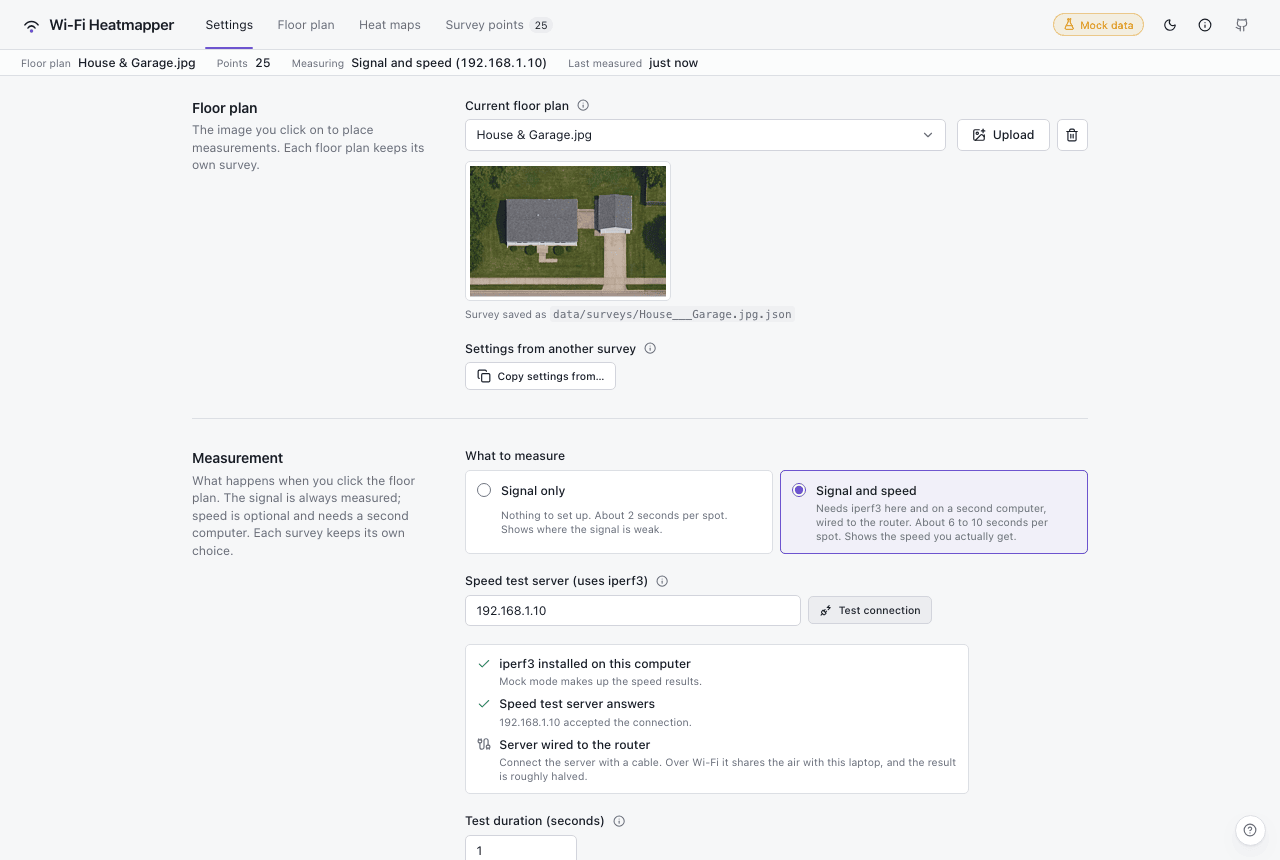
Floor plan – the image you click on. Choose one of the bundled plans or upload a PNG, JPEG or WebP. Each floor plan keeps its own survey in
data/surveys/<name>.json. The trash button deletes the image and its survey.Settings from another survey – Copy settings from… copies settings of another floor plan's survey into this one. Pick the survey, then tick what to copy:
- Speed settings (ticked to start with) – what to measure, the speed test server, the test duration and extra iperf3 options;
- Access point names;
- Heat map look – spot size, opacity, colours and the fixed colour scales set on the Heat maps tab. The spot size is in floor-plan pixels, so it fits best between images of a similar size.
The points, the floor plan image and its size are never copied, and neither is the sudo password.
What to measure – Signal only (nothing to set up, about 2 seconds per spot) or Signal and speed (needs iperf3 on this computer and on a second one, about 6 to 10 seconds per spot). Each survey keeps its own choice. A new survey starts with the speed settings (what to measure, server, duration and extra iperf3 options) of the survey you saved last, and says so under Measurement: "Speed settings copied from …". The very first survey starts with signal only. See signal only or with speed? The settings below appear only for speed:
- Speed test server (uses iperf3) – the address of the second computer,
which runs
iperf3 -s:192.168.1.10,nas.local,host:portor[IPv6]:port. - Test connection and the checklist under it – whether iperf3 is installed on this computer and whether the server answers, plus a reminder to wire the server to the router.
- Test duration – seconds per test, 5 by default. Below 3 the numbers read low and jump around.
- Jitter and lost packets – also runs fixed-rate (UDP) tests in both directions, for jitter and lost packets. Off for new surveys; it doubles the time per spot.
- Advanced: iperf3 options – extra iperf3 options for each test,
separated by spaces, such as
-P 4(four parallel streams). The app sets the server, port, duration, download/upload and TCP/UDP itself; the field shows the whole command. Surveys from before 0.8 stored whole commands; their extra options are kept, and a command with shell syntax (pipes,;, redirects) is replaced by the defaults.
- Speed test server (uses iperf3) – the address of the second computer,
which runs
sudo password – needed only where reading the signal needs it: on macOS without the Wi-Fi helper (running from source) and on Linux when
iwis refused. The app's server holds it in memory for as long as the app runs, so measurements an AI agent starts can use it too. It is never written to disk, never sent back to the page, and gone when the app restarts; emptying the field forgets it. Not shown on Windows, in Docker, in mock mode, or when the Wi-Fi helper makes it unnecessary.Access point names – optional names for access points, by MAC address (BSSID), shown instead of the address in point details, the table and the CSV export. End a MAC address with
*(for exampleaa:bb:cc:dd:ee:*) to name every BSSID that starts with it, such as the per-band BSSIDs of one access point. An exact MAC address wins over a prefix, and a longer prefix wins over a shorter one.Heat map colours – the colour stops for signal strength (0% = -100 dBm, 100% = -40 dBm) and the opacity range of the overlay.
Usage counts – turns the anonymous usage counts (installs, app starts, number of measurements) on or off for this computer, shows the exact event that is sent and when the last one went out, and says why they are off if an environment variable or mock mode turns them off. See Privacy and usage counts.
Floor plan
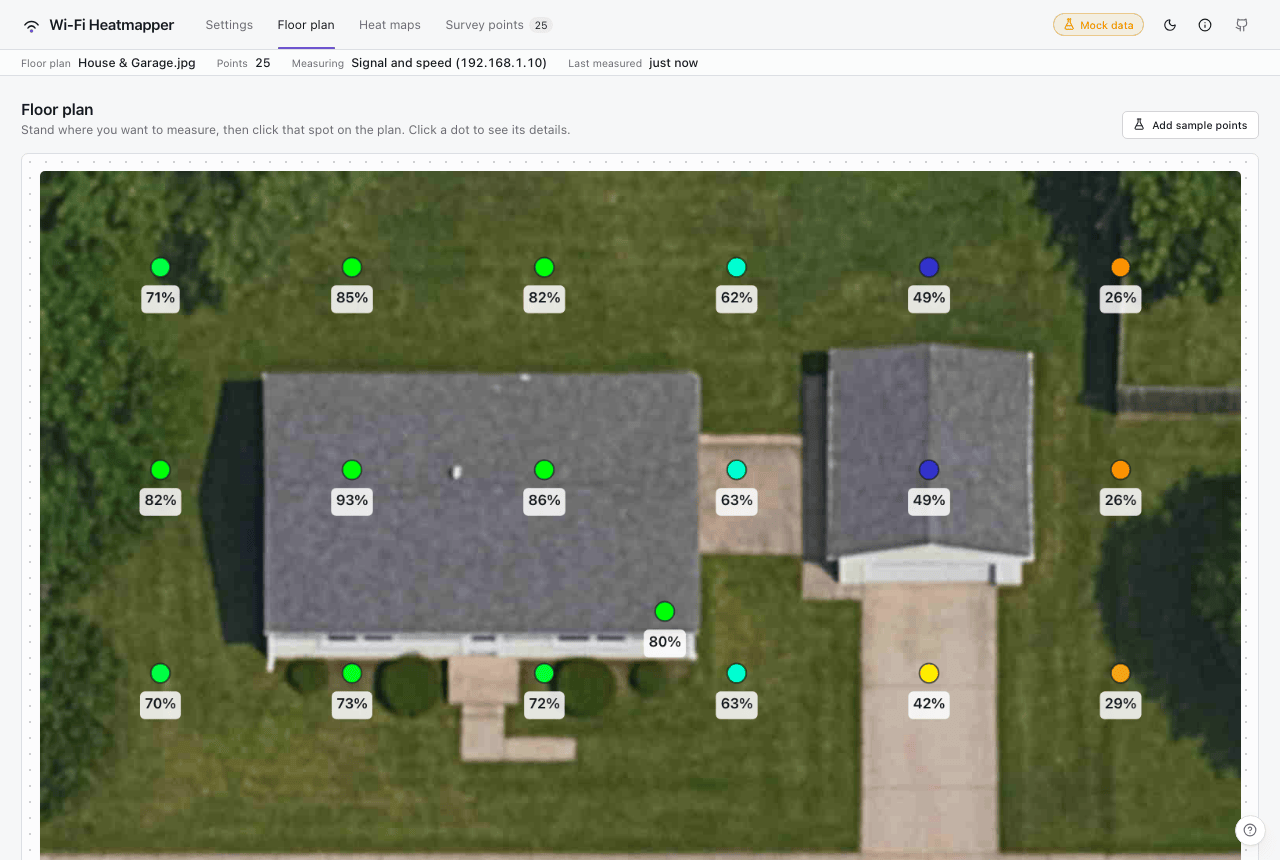
Stand where you want to measure and click that spot. A pulsing dot marks the spot while the measurement runs; the panel in the corner shows progress and has a Cancel button. In a signal-only survey it shows the signal and "Speed: not measured (signal only)"; with speed it shows download / upload (and the fixed-rate UDP results, if they are on) as they come in. When it finishes, the dot is coloured by signal strength and labelled with the percentage.
The app's server takes the measurement and saves the point, so closing or reloading the page while it runs doesn't lose it: open the app again and the point is there (a page opened meanwhile shows the progress too). Cancel stops at once, even in the middle of a speed test, and nothing is saved. One measurement runs at a time; other open pages of the same survey show its progress, and so does a measurement an AI agent starts.
If the survey measures speed but the speed test could not run (iperf3 not installed, no server, server not answering), the point is still saved: the panel says Saved without speed, gives the reason and stays open until you dismiss it. See when the speed test can't run.
Click a dot to see its details (signal, noise and signal-to-noise ratio where measured, network, access point and speed), switch it off (it is then ignored by the heat maps) or delete it.
Name a point to find it again: click its name at the top of the
details (Point_1 until you name it), type a name such as "Kitchen" or
"Desk upstairs" and press Enter, or click elsewhere. Escape cancels; an
empty name goes back to the id. Names are up to 60 characters. The name is
shown instead of the id in the details, the points table and the CSV; the
id stays as it is. The measured values can't be edited: a point shows what
was measured.
On Linux, measurements use the first connected managed Wi-Fi interface, ignoring monitor, AP and P2P devices. If the link is disconnected or its signal information is incomplete, the measurement reports an error instead of saving an empty reading.
Zoom and pan. The plan first shows whole, fitted to the window's width and height, so a tall plan doesn't run off the screen. To look closer:
- the buttons in the plan's top-right corner zoom out, zoom in (up to 800%) and go back to the whole plan (Fit to view); the number between them is the zoom, where 100% is the whole plan;
- hold Ctrl (⌘ on a Mac) and turn the mouse wheel, or pinch on a trackpad or touch screen, to zoom in or out where the pointer is. The wheel alone scrolls the page as usual;
- drag the plan to move around it. A drag never measures or selects a point; only a click that stays put does;
- after clicking the plan (or tabbing to it), + and - zoom, 0 fits and the arrow keys move around.
Dots and their labels keep their size on screen at any zoom. The zoom is not saved: it goes back to the whole plan when you pick another floor plan or reload the page.
In mock mode, "Add sample points" fills the plan with synthetic points.
Heat maps
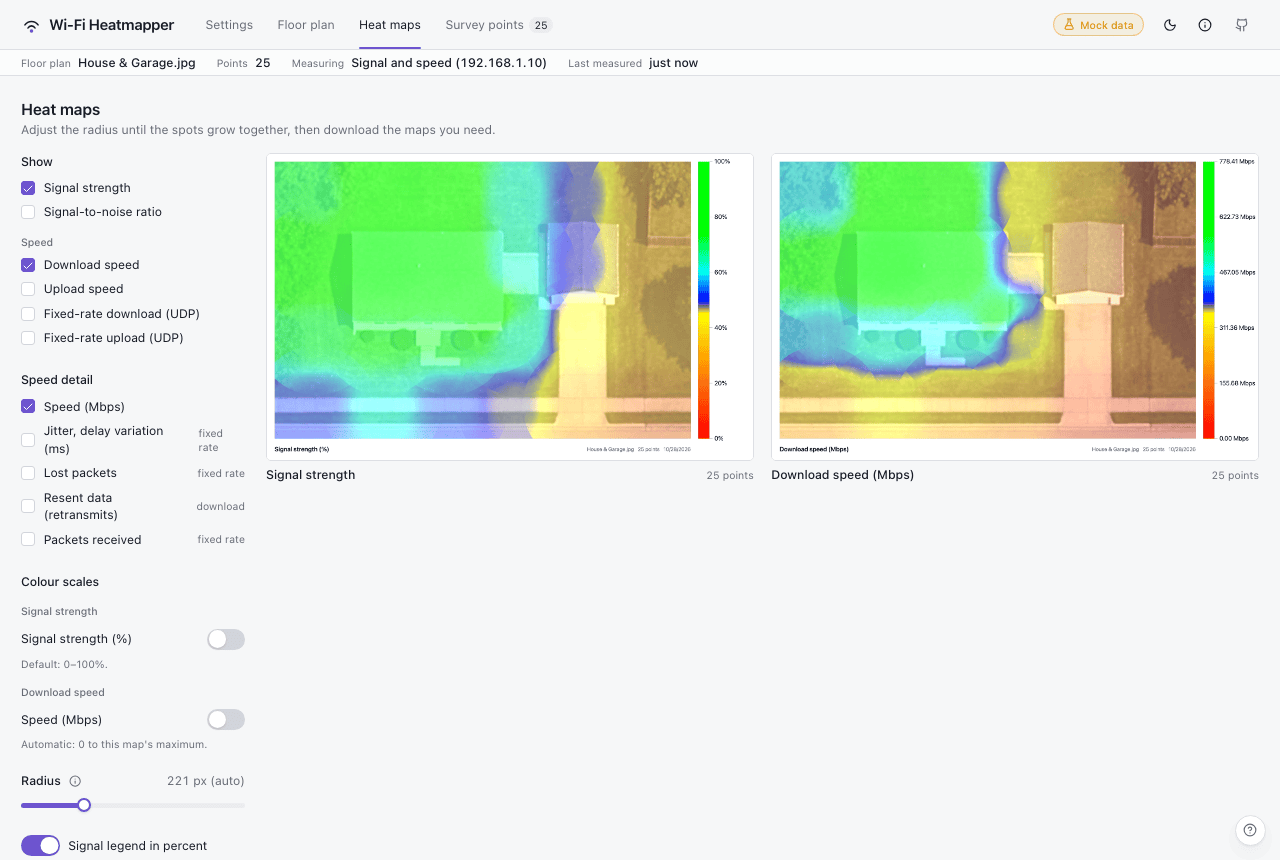
Tick the measurements you want to see. By default, signal strength uses a 0–100% scale; other measurements run from 0 to each map's maximum.
The Speed maps (download speed, upload speed and the fixed-rate UDP tests) appear once at least one point has a speed reading. Until then a line under the list says the survey measures signal only, with a link to Settings. Speed detail picks what each speed map shows: speed in Mbps, jitter (variation in delay), lost or received packets, or resent data (retransmits).
Signal-to-noise ratio (RSSI minus the noise floor, in dB; 0–50 dB by
default, higher is better) uses only points with a noise reading. macOS and
Linux drivers that report noise in iw dev <interface> survey dump record it;
Windows does not, so the option is greyed out for surveys without noise.
Under Colour scales (folded away until you open it), turn on a fixed scale for a map and edit its Lower and Upper values. Each map has independent bounds: download, upload and the two fixed-rate (UDP) tests do not share ranges, even for the same parameter. Signal strength has its own range too. The first time you enable a fixed scale, it freezes that map's current automatic range. While a field is empty or invalid, the last valid range stays active. Use identical ranges in your before and after surveys to compare them. Ranges are saved with each survey.
Speed bounds use Mbps, jitter uses ms, packet values use counts, and signal bounds use percent even when its legend shows dBm. The map, legend and downloaded PNG all use the chosen range. Values outside it use the endpoint colours; measurements are unchanged. Green represents higher values, so lower jitter, packet loss and retransmits are better even though they appear toward the red end. Turn off the fixed scale to restore automatic scaling. Your saved bounds are retained while off, including across reloads; turning it on again restores them rather than freezing a new automatic range.
Radius controls how far each point's influence reaches. It starts at an automatic value based on how spread out your points are; drag it until neighbouring spots merge into one surface.
Hover a map to enlarge or download it. Downloaded PNGs include the legend and a caption with the floor plan name, point count and date. An enlarged map zooms and pans like the floor plan: the buttons in its corner, Ctrl (⌘) + wheel or a pinch, dragging, and + / - / 0.
Survey points
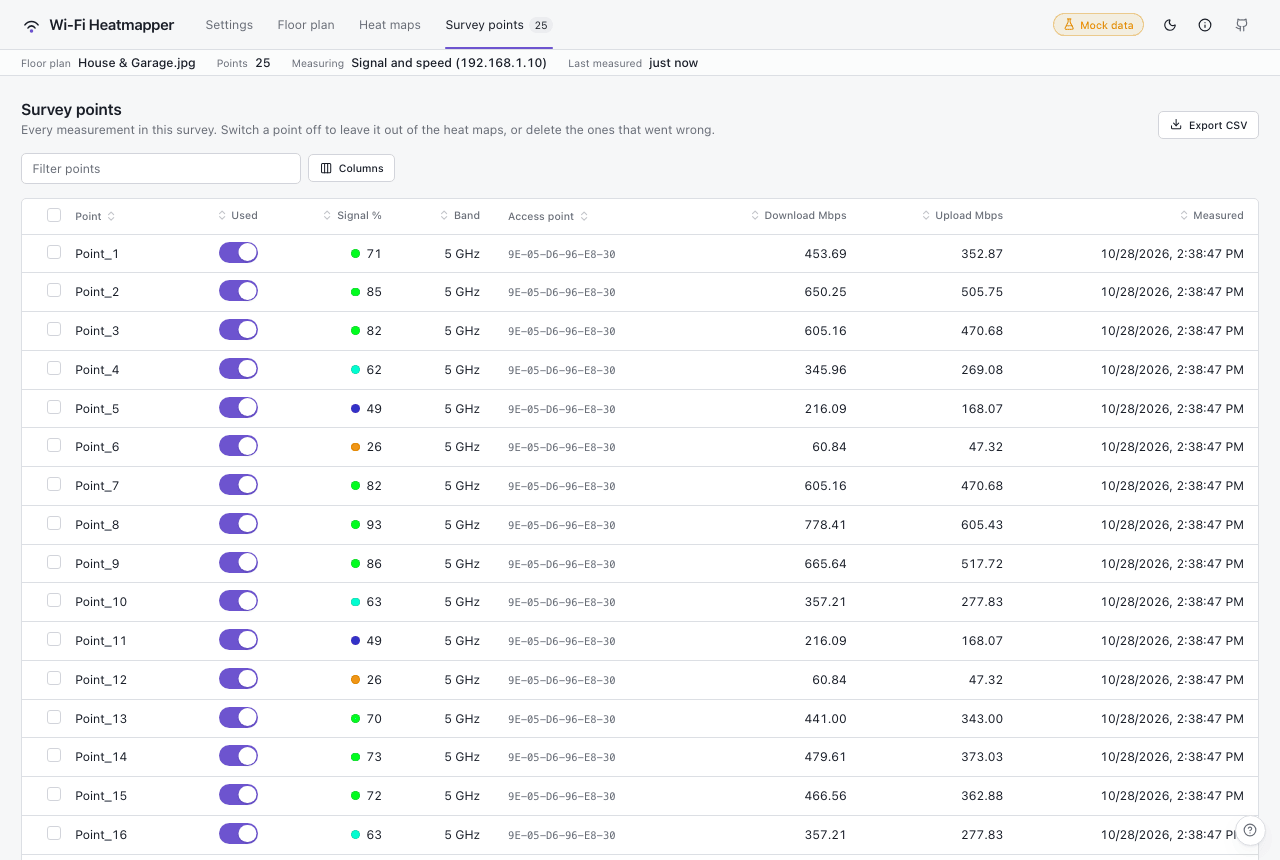
Every measurement in the survey. Sort by any column, show more columns
(signal in dBm, channel, Wi-Fi standard, coordinates, and more), filter,
switch points off, delete a selection, or export everything: Export CSV
for a spreadsheet, Export JSON for the whole survey (points and
settings) exactly as the app saves it. The
Name column shows each point's name (its id, such as Point_3, until
you name it; the id column is under Columns); click it to rename the
point, the same way as in its details. Each access point gets its own
colour in the Access point column and in a point's details, so points
on the same access point are easy to spot. The CSV has it in the label column. The
download and upload columns appear once a point has a speed reading.
A test that did not run shows as "—" (an empty cell in the CSV); a test
that ran and got nothing through shows as 0, a real dead spot.