The app is a small local web server with a browser interface. The desktop app is the same server in its own window. When you click the floor plan, the server reads the Wi-Fi signal with the tools your system already has, runs the speed tests with iperf3 if the survey measures speed, and saves the point to the survey file.

Each measurement reads the Wi-Fi signal three times (before, between and after the speed tests, if any) and stores the average. Whether the speed test can run (iperf3 installed, server set and answering) is checked the same way on every system; if it can't, the signal is saved without speed and the app says why.
The app's server runs the measurement and saves the point itself, so closing or reloading the browser tab meanwhile doesn't lose it, and Cancel stops it at once. Nothing runs through a shell: the speed test server and iperf3 options you type reach iperf3 as plain arguments, never as a command.
Where the readings come from
| System | Wi-Fi signal | Notes |
|---|---|---|
| macOS | CoreWLAN, through the app's small Wi-Fi helper | No password. The helper needs Location access to see the network name. From source without the helper: wdutil (needs sudo), ioreg and system_profiler. |
| Windows | Native Wifi API (wlanapi.dll) |
Part of Windows, works in any display language. netsh is the fallback. On Windows 11 24H2 and later, Location services must be on. |
| Linux | iw |
nmcli is optional and only lists nearby networks. Uses the first connected managed Wi-Fi interface. |
| All | iperf3 |
Only for speed tests. See measuring speed. |
Where the system reports it, each point also stores the noise level in
dBm: macOS does, and so do Linux drivers that print noise in
iw dev <interface> survey dump (many do; Intel's often don't). Windows
doesn't. The signal-to-noise ratio is the signal minus the noise, in dB:
the higher the better. As a rule of thumb, 25 dB and more is good, and
below about 15 dB a connection struggles even when the signal looks strong. The Signal-to-noise ratio heat map uses
only the points that have it.
Signal strength in percent and dBm
Each point stores both the RSSI in dBm and a percentage. The app treats -40 dBm, typical a couple of feet from an access point, as 100%, and -100 dBm as 0%, in a straight line between them.
- 75% and up (-55 dBm and better): excellent. Green on the heat map.
- 50–75% (-70 to -55 dBm): acceptable, turquoise to blue.
- Below 45% (-73 dBm and worse): too weak for a reliable connection, yellow to red.
| dBm | Percent |
|---|---|
| -40 | 100% |
| -50 | 83% |
| -55 | 75% |
| -60 | 67% |
| -65 | 58% |
| -70 | 50% |
| -75 | 42% |
| -80 | 33% |
| -90 | 17% |
| -100 | 0% |
Each 3 dB drop halves the received power, so 75% (-55 dBm) is already about one thirtieth of the power at 100%. The colour stops are editable under Heat map colours in Settings.
How the heat map is drawn
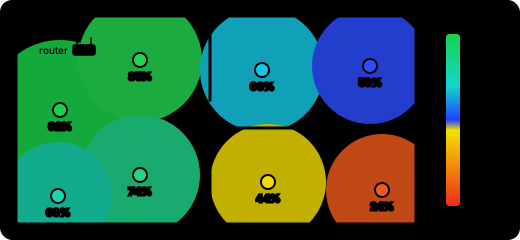
The heat map uses inverse distance weighting: each pixel takes a weighted average of the survey points around it, and closer points weigh more. Points only reach as far as the Radius on the Heat maps tab. It starts at a value computed from how densely your points cover the plan; drag it until neighbouring spots merge, or back to zero to return to the automatic value.
Values are scaled to the colour range before averaging and clamped only after, so a measurement outside a fixed colour scale still pulls on its neighbours. The drawing runs on the GPU with WebGL.
Network names on macOS
Since macOS 15, apps only see the network name (SSID) and access point
address (BSSID) if they have Location access. The desktop app and the
optional helper ask for it once; nothing looks up where you are. Without it,
or when running from source with wdutil, names show as <redacted>
(see the FAQ).