
See where your Wi-Fi is weak.
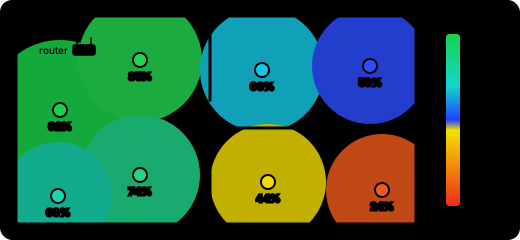
Walk around with your laptop and click where you stand on a floor plan. Wi-Fi Heatmapper measures the signal strength there, and optionally the real speed. A few rooms later you have a heat map of your home or office, and you know where the next access point should go.
Free and open source. macOS, Windows and Linux. Version 0.8.2.

What it does
Answers the question “is it the Wi-Fi?” for every room, with numbers you can compare.
- Signal strength everywhere
- Each spot records the signal in dBm and percent, plus the access point, channel and band it was connected to.
- Real speed, not just bars
- Choose “Signal and speed” and every spot also gets its download and upload speed, measured against a second computer on your network with iperf3, plus jitter and lost packets.
- Noise and signal-to-noise
- Where your system reports noise (macOS and many Linux drivers), you also get a signal-to-noise map: it shows spots that look strong but are drowned out by interference.
- Before and after
- Fix the colour scale of each map, then survey again after moving the router or adding a mesh node. Same colours, same numbers. Copy the settings to the next floor in one click.
- Any floor plan
- Upload an architect’s drawing, a screenshot from the map, or a phone photo of a pencil sketch. It does not need to be to scale.
- Access points by name
- Call
aa:bb:cc:dd:ee:*“Upstairs mesh” and every band of that node shows up under one name in the table and export. - Works with AI agents
- Claude or another agent can read and explain your surveys, and walk you through a new one: it tells you where to stand and measures once you say you’re there. More below.
- Easy to report a problem
- Wi-Fi differs on every system. Report a problem fills in a GitHub issue with the app’s diagnostics, leaving out your password, network names and addresses.
- Stays on your computer
- No account, no cloud, works offline. Surveys are plain JSON files; export points as CSV and maps as PNG. The app only sends anonymous usage counts, which tell me it’s used; turn them off any time.
Signal only, or signal and speed?
Every survey measures the signal. Speed is optional: it needs a second computer, and tells you what you actually get. You choose per survey in Settings.
| Compared | Signal only | Signal and speed |
|---|---|---|
| Setup | Nothing | iperf3 on two computers; one stays put, wired if possible |
| Time per spot | About 2 s | About 6–10 s |
| Tells you | Where coverage is weak | What speed you actually get; catches interference and slow links that look strong |
| Limits | Strong signal is not always fast | A server on Wi-Fi halves the result; the fixed-rate (UDP) test is capped at 100 Mbps by default |
More in getting started and measuring speed.
How it works
A survey of a flat takes about ten minutes.

-
Pick a floor plan
Use the bundled example or upload your own image in Settings. Each floor plan keeps its own survey.
-
Click where you stand
The app reads the Wi-Fi signal (and tests the speed, if you chose to) and drops a coloured dot on that spot.
-
Cover every room
One or two spots per room, more in big ones and near the edges. Switch off or delete any odd reading.
-
Read the heat maps
Drag the radius until the dots merge into one surface, then download the maps you need.

Under the hood
The app uses what your system already has: CoreWLAN on macOS (through a small helper, no password),
the Native Wifi API on Windows (with netsh as a fallback), and iw on Linux.
Speed (throughput, technically) comes from iperf3. The app’s server runs each measurement
and saves the point, so closing the tab doesn’t lose it, and nothing runs through a shell.
The heat map is inverse-distance weighting drawn with WebGL.
The details are on the
how it works page.
Survey with an AI agent
An optional MCP server lets Claude Code, Claude Desktop or another agent work with the app on your computer. You carry the laptop; the agent does the bookkeeping.
YouLet’s measure the ground floor. I have the laptop.
AgentNothing is measured in the east half yet. First the kitchen, top right on the plan. Tell me when you’re there.
YouI’m by the counter.
AgentKitchen: signal 48% (−74 dBm), download 180 Mbps. Weak but usable. Next: the hallway by the front door.
- It can read and explain your surveys, plan where to measure, set up and copy settings, measure each spot once you confirm, and prepare a problem report.
- It can’t walk around, see the drawn maps (it gets the numbers instead), or handle your sudo password, and it needs the app running.
- It stays local: it only talks to the app on this computer, asks before every measurement, and can’t delete anything.
Setup for each client is in the AI agent guide.
Download
Version 0.8.2. Everything is built in, except iperf3 if you want to measure speed.
macOS
macOS 13.5 (Ventura) or later
Or with Homebrew, which installs iperf3 too:
brew install --cask hnykda/tap/wifi-heatmapper
Linux
x64 and ARM64, including Raspberry Pi
The apps are not signed, so macOS and Windows warn you the first time you open them. The install guide shows the two clicks it takes on each system, where your data is kept, and what has been tested so far.
Rather run it from source? With Node.js 22.12 or newer (also the way to go on a Mac older than 13.5):
git clone https://github.com/hnykda/wifi-heatmapper.git
cd wifi-heatmapper
npm install
npm run dev        # then open http://localhost:3000
There is also a Docker image for Linux hosts,
and npm run dev:mock to try the app with made-up measurements on any machine.
All files are on the releases page.
Documentation
The same pages live in the repository as Markdown, so they change together with the code.
- Getting startedInstall the app and survey your first floor plan in about ten minutes.
- Installing the appInstallers for macOS, Windows and Linux, the first launch of an unsigned app, Location access, and where your data is.
- Using the appEvery tab and setting: floor plans, measuring, heat maps and colour scales, survey points.
- Measuring speedAdd download and upload speed to every measurement, with a second computer running iperf3.
- How it worksWhere the readings come from on each system, what the signal percentage means, and how the heat map is drawn.
- Running from sourceRun the app with Node.js instead of the desktop app, in mock mode, or in Docker on Linux.
- FAQFloor plans, hidden network names on macOS, backups, and how to report a problem.
- Using it with an AI agent (MCP)Let Claude or another AI agent read your surveys, guide you through measuring one while you carry the laptop, and explain the results, through an optional MCP server.
- Privacy and usage countsThe anonymous usage counts the app sends, every field in them, what is never sent, and all the ways to turn them off.
- llms.txtA plain-text map of the docs for AI assistants. llms-full.txt has every page in one file.
Free, and open to help
Wi-Fi Heatmapper is MIT licensed: no ads, no accounts, no paid tier. If it saved you an afternoon of guessing where to put the router, a star helps others find it.
-
Tell us how it went
The desktop apps are young. Even “it just worked” helps: open a desktop app report with your system and what you tried.
-
Report a problem
In the app, click the ? in the bottom-right corner and choose Report a problem: it fills in a GitHub issue with your system and the app’s diagnostics, leaving out your password and network details.
-
Send a pull request
Start with CONTRIBUTING.md or a good first issue. Mock mode runs the whole app without Wi-Fi, so any machine will do.