Wi-Fi Heatmapper measures Wi-Fi signal strength, and optionally speed, at the spot you click on a floor plan, then draws heat maps of the results. You walk around with a laptop; the heat maps show which rooms have a weak signal, where a mesh node or extender would help, and whether a slow connection is really the Wi-Fi's fault.
It runs on macOS, Windows and Linux. Your surveys stay on your computer: they are plain JSON files, there is no account and no cloud. The app sends only anonymous usage counts, which you can turn off.
Install
Download the app for your system from the
latest release:
a .dmg for macOS (13.5 Ventura or later), an installer for Windows, a
.deb or AppImage for Linux. On a Mac you can use Homebrew instead, which also installs
iperf3:
brew install --cask hnykda/tap/wifi-heatmapper
The apps are not signed, so macOS and Windows warn you the first time you open them. Installing the app walks through that for each system. Prefer a terminal? See running from source.
On a Mac, click Allow Location access in Settings once: macOS then lets the app see your network's name. Your location itself is not used.
Signal only or with speed?
Every survey measures the signal. It can also measure speed: how fast data actually moves between this laptop and a second computer on your network. You choose under What to measure in Settings, separately for each survey. New surveys start with Signal only.
| Signal only | Signal and speed | |
|---|---|---|
| Setup | Nothing | iperf3 on two computers; one stays put, wired if possible |
| Time per spot | About 2 s | About 6–10 s |
| Tells you | Where coverage is weak | What speed you actually get; catches interference and slow links that look strong |
| Limits | A strong signal is not always fast | A server on Wi-Fi roughly halves the result; the optional fixed-rate (UDP) test stops at 100 Mbps by default |
Start with signal only to find the weak rooms. Add speed when you want to know whether the Wi-Fi is really what makes a connection slow, or to compare before and after a change. Measuring speed explains the setup.
Your first survey
- Settings. Pick the bundled floor plan or upload your own image. A photo of a pencil sketch is fine; it does not need to be to scale (see the FAQ). Leave What to measure at Signal only, or set up speed tests first.
- Floor plan. Stand somewhere, click that spot. The app measures the signal (and speed, if the survey measures it) and drops a coloured dot there. Do this in every room, twice in big ones, and near the outer walls.
- Heat maps. Drag the radius until neighbouring spots merge into one surface. Download the maps you need.
- Survey points. Check, switch off or delete individual measurements, or export everything as CSV.
A second floor (or house)? Upload its floor plan in Settings. The new survey starts with the speed settings of the one you used last, so the speed test server is already filled in. To bring over access point names or the heat map look too, use Copy settings from… under Floor plan.
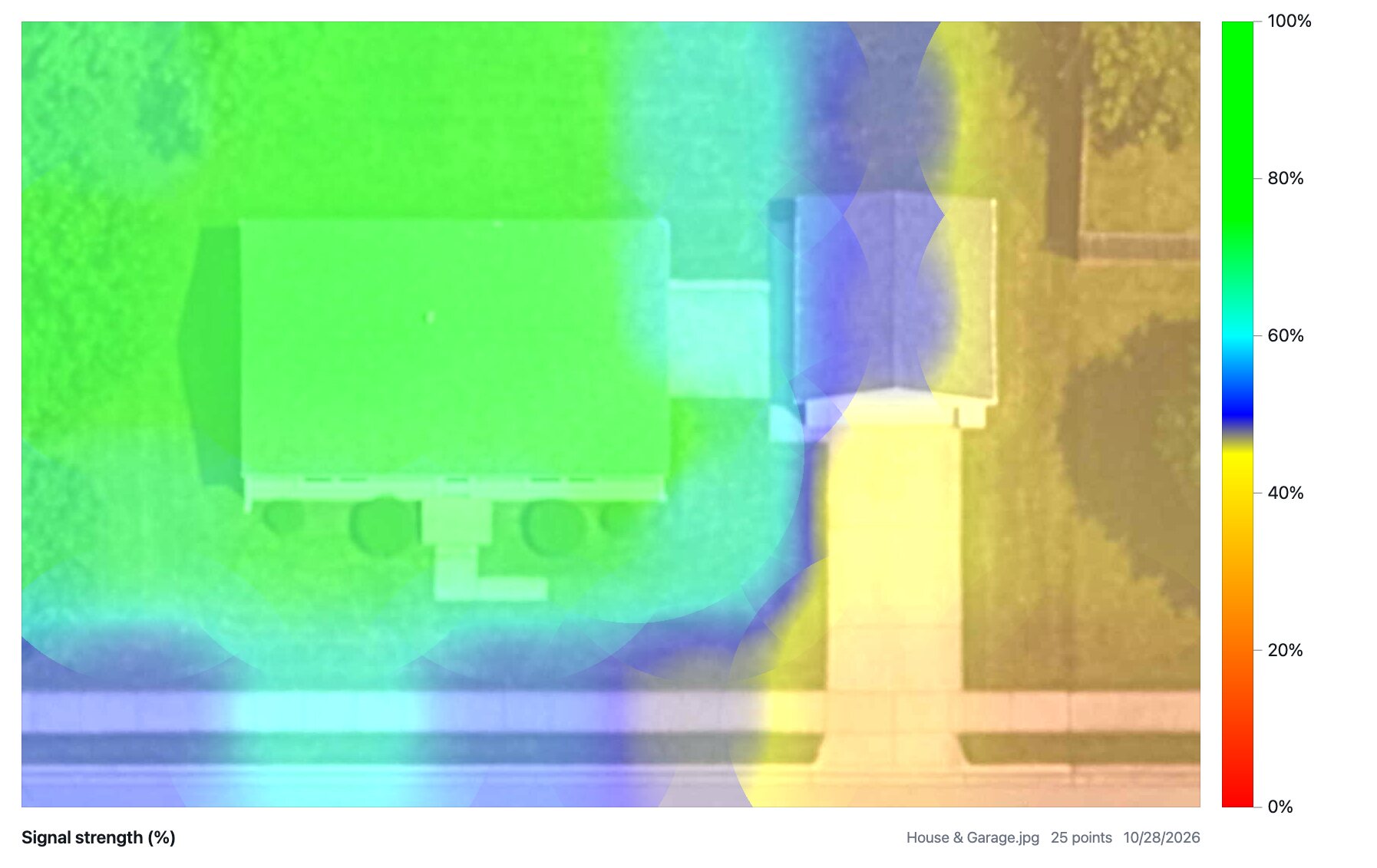
Green is good. The scale runs green, turquoise, blue for acceptable signal, then yellow and red where it gets poor. Using the app explains every tab and setting.
Rather be guided? An AI agent such as Claude can plan the survey, tell you where to stand, take each measurement once you say you're there, and explain the result: see Using it with an AI agent.
Something odd? Click the ? in the bottom-right corner and choose Report a problem. Wi-Fi behaves differently on every system, so reports really help (see the FAQ).
Try it without any hardware
Running from source, npm run dev:mock fakes the measurements, so you can
explore the app on any machine without a Wi-Fi card, sudo or iperf3. The
header shows a "Mock data" badge while it is on.